




 Awakelet
Keep your Mac awake until the job is done.
Then let it sleep, or shut it down — automatically. One click in the menu bar, or just ask your AI.
3-day full trial · no account · one-time purchase · macOS 14+
Keep your Macawake until thejob is done
Keep your Mac awake while Claude Code works, then let it sleep
Long agent runs stop when the Mac dozes off. In Awakelet choose Keep Awake › While AI Agents Are Working: your Mac stays awake while Claude Code, Codex, Aider, Gemini CLI and other coding agents are busy, including the builds and tests they start, and goes back to normal sleep a few minutes after they finish.
Or let the agent do it through Awakelet's local MCP server. Try: “Awakelet, keep my Mac awake while you work on this, then let it sleep.”
Keeps the Mac from idle sleep with the lid open. Closing the lid still puts a MacBook to sleep.
What it does
06How to use Awakelet
In the app
- 1
Click the Awakelet icon (a small sun) in the menu bar at the top of the screen.
- 2
Choose Keep Awake and pick how long — or When Done to stay awake until an app quits or a download finishes.
- 3
Want the screen to stay on too? Turn on Keep Display On. To sleep or shut down later, use Schedule Sleep or Shut Down…
- 4
Curious why your Mac won’t sleep? Open the menu and choose What’s Keeping My Mac Awake?

With your AI assistant
- 1
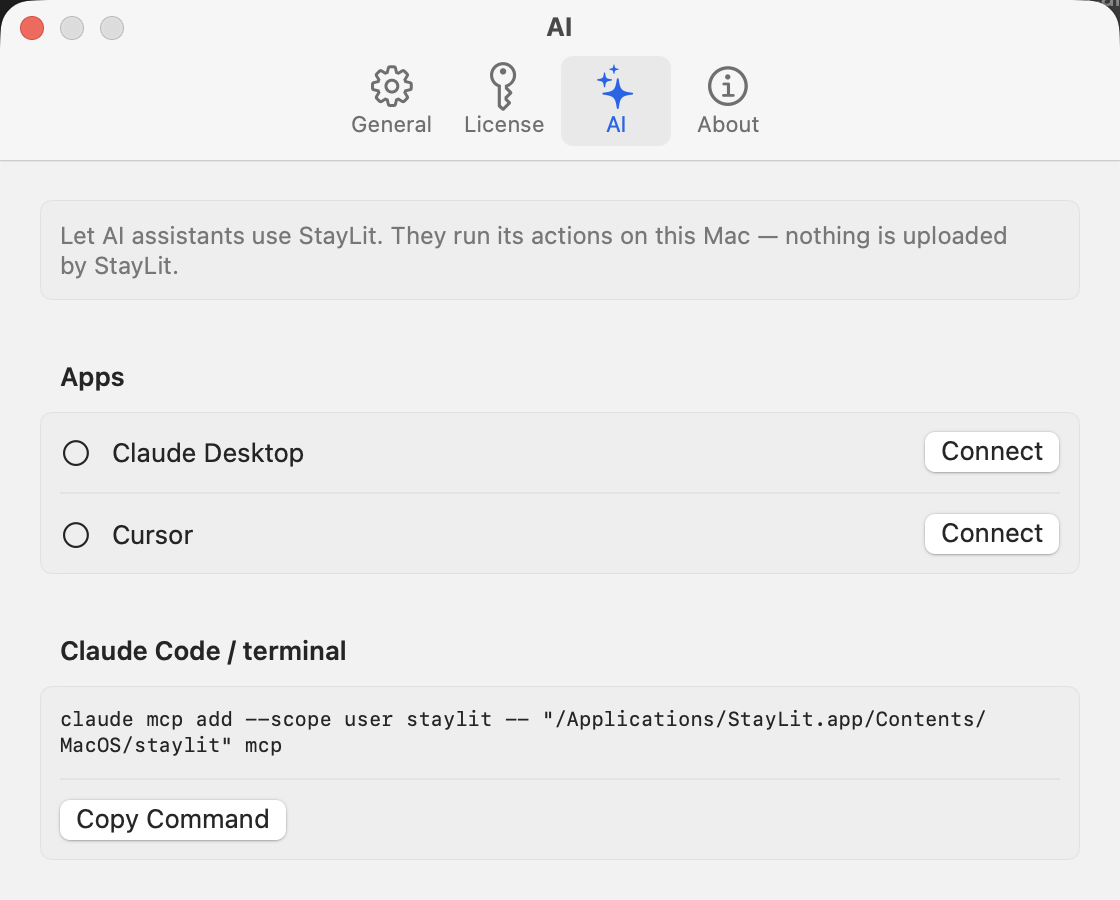
Connect once: in the menu bar at the very top of your Mac screen, click the Awakelet icon → Settings… → the AI tab, then click Connect next to Claude Desktop or Cursor. Each app connects on its own — connecting another Tidyware app does not connect Awakelet. See the screenshot →
- 2
Quit the AI app completely (⌘Q) and open it again — closing the window is not enough.
- 3
Start a new chat and ask: “What can you do with Awakelet?” If the AI lists Awakelet’s actions, you’re connected.
- 4
Then just ask in plain words — try one of the sample requests below.
- 5
When the AI asks to use Awakelet, click Allow. Awakelet does the work right on your Mac and the AI tells you the result.
Sample requests — click Copy, then paste into Claude
- “Use Awakelet: Keep my Mac awake for 3 hours, then let it sleep”
- “Use Awakelet: Keep it awake until Final Cut finishes exporting”
- “Use Awakelet: What is keeping my Mac awake?”
- “Use Awakelet: Shut down the Mac at 23:30”
- “Use Awakelet: Stop keeping the Mac awake”
Not working?
- The AI does it another way, or says it has never used Awakelet → Awakelet isn’t connected yet. Click Connect in Awakelet’s own Settings → AI (each app connects on its own), then quit and reopen the AI app.
- The AI doesn’t know Awakelet → quit the AI app with ⌘Q and open it again.
- Connect is greyed out → move Awakelet into the Applications folder and open it from there.
- The AI says it can’t → you may have clicked Deny. Ask again and click Allow.
- Still stuck → email [email protected].


Just ask your AI
MCP · SHORTCUTS · CLIWorks with Claude, Cursor, Siri & Shortcuts — say it in plain words
- “Use Awakelet: Keep my Mac awake for 3 hours, then let it sleep”
- “Use Awakelet: Keep it awake until Final Cut finishes exporting”
- “Use Awakelet: What is keeping my Mac awake?”
- “Use Awakelet: Shut down the Mac at 23:30”
- “Use Awakelet: Stop keeping the Mac awake”
Private by design
03One-time purchase
$9
Use on up to 3 Macs · free updates for Awakelet 1.x · 14-day refund, no questions
Checked by Apple for safety — opens without warnings.
Runs on Apple silicon and Intel Macs (macOS 14 or later). Hit a problem? Contact us — we'll fix it free, with priority.
FAQ
08Is this a subscription?
No. You pay once and keep the app. Updates for version 1.x are free.
Does it work with the lid closed?
Not in version 1.0. Lid-closed mode and scheduled wake-up need a small system helper and are planned for a later free update.
Can it wake my Mac at a set time?
Not yet in 1.0 (it needs administrator rights). It can keep the Mac awake, then sleep or shut it down on schedule.
Does it collect any data?
No. Everything runs on your Mac. It only checks your license online and, if you allow it, looks for updates.
Which languages does it support?
English, Vietnamese, German, French, Spanish, Portuguese (Brazil), Italian, Japanese, Korean and Simplified Chinese. The app follows your Mac's language.
Can I use it on more than one Mac?
Yes, on up to 3 Macs. Try every feature free for 3 days. If you buy and change your mind, email us within 14 days for a full refund.
How do I uninstall it?
Quit the app and drag it from Applications to the Trash. If you connected it to Claude Desktop or Cursor, first open Settings → AI and click Disconnect, so your AI app doesn't keep a link to a tool that's gone. Settings are a few KB in ~/Library/Application Support/app.tidyware.staylit — delete that folder too for a clean slate.
Where is my license key after I buy?
Polar emails you “Your Awakelet order confirmation”. The key isn’t in the email itself — click “Access purchase” and copy the key from the page that opens. Lost the email? Go to polar.sh/tidyware/portal and sign in with the email you paid with. Then paste the key in Awakelet → Settings → License.